
Download UpRight – File Upload, File Transfer, FTP, Amazon S3, Web Directory, Context Menu, Windows, Productivity Tool
Overview
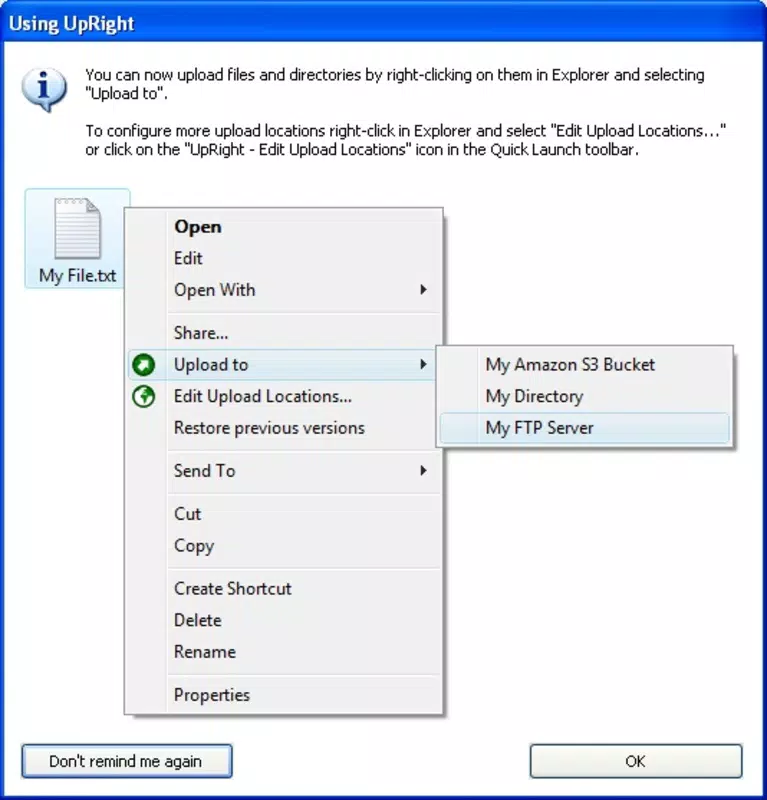
UpRight is a productivity-focused utility designed to simplify file management tasks on Windows systems. The application enables users to upload files directly from their context menu, eliminating the need to navigate through separate file transfer clients or web interfaces. By integrating with the Windows right-click menu, UpRight streamlines the process of transferring files to various online storage services, including FTP servers, web directories, and Amazon S3. This makes it particularly useful for professionals who regularly manage digital assets, such as web developers, content creators, and IT administrators.
The app addresses common inefficiencies in file transfer workflows by offering direct access to multiple storage types through a single interface. Users can configure connections once and reuse them, reducing repetitive setup steps. Although the developer did not provide additional technical details about the app’s architecture or backend processes, its core functionality centers on enhancing workflow efficiency through contextual integration. Real-world use cases include uploading updated website files to a remote server, transferring project documents to cloud storage, or synchronizing files across multiple platforms without switching applications.
Given its release date in October 2012, UpRight has been a long-standing tool in the Windows productivity ecosystem. Its continued relevance suggests a stable and reliable design, even as newer tools emerge. The fact that it remains free to use adds to its appeal, especially for users seeking lightweight, no-frills solutions for routine file transfers.
Key Features & Functionality
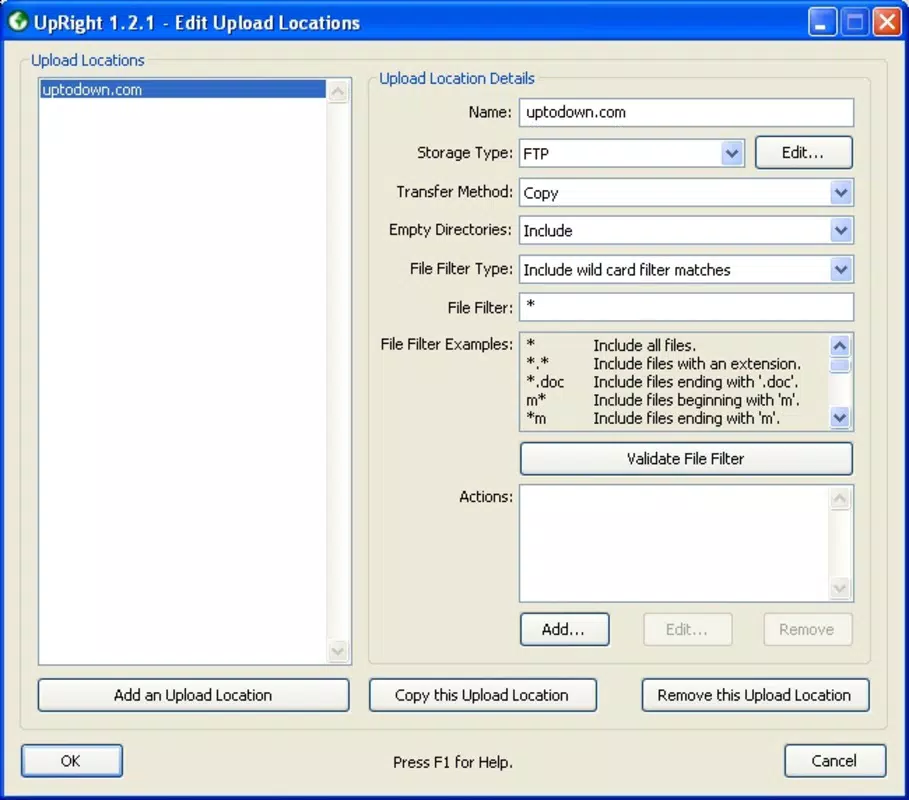
- Multiple Storage Support: UpRight allows integration with FTP servers, web directories, and Amazon S3. Users can input connection details once and securely store them within the app, enabling fast access during future uploads.
- Context Menu Integration: The application adds a dedicated entry to the Windows right-click menu, allowing users to initiate file uploads with a single click, significantly reducing workflow friction.
- Transfer Type Selection: Users can choose between copying or moving files during upload, providing flexibility for different organizational needs—such as preserving originals or removing them after transfer.
- File Filtering Options: UpRight supports file masking, enabling users to select specific file types or patterns for upload, which helps avoid unnecessary transfers and improves batch processing efficiency.
- Pre- and Post-Upload Actions: The app allows users to define actions before and after file transfer, such as renaming files, compressing archives, or logging transfer events, which enhances automation and system consistency.
These features are particularly beneficial in environments where repetitive file transfers are common. For example, a web developer might use UpRight to automatically copy updated HTML and CSS files to a staging server while filtering out temporary or unused assets. Similarly, a digital marketer could use it to move campaign assets to Amazon S3 after uploading them via FTP, ensuring a clean and organized workflow.
Interface, UX & Performance
UpRight features a minimalistic interface focused on functionality rather than visual flair. The application window is compact and organized, with clearly labeled fields for connection setup and transfer options. Navigation is straightforward, relying on a tabbed layout for managing different storage types and transfer settings.
Although the developer did not list formal performance metrics, the app’s lightweight footprint of 3.1 MB suggests efficient resource usage. Users can expect low memory consumption and fast startup times, which is critical for a tool used frequently during file management tasks. The responsiveness of the interface appears consistent across various device categories, though specific compatibility details were not disclosed.
Stability is implied by the app’s long-standing presence since 2012. However, no official information was provided about crash rates, update frequency, or error handling. The absence of complex animations or background processes further supports smooth operation. Overall, the user experience prioritizes speed and reliability over aesthetic enhancements.
Platform Compatibility & Technical Requirements
UpRight is designed for the Windows platform and is compatible with Windows operating systems. The current version is 1.0.0.1, with a file size of 3.1 MB. The developer did not specify minimum OS requirements, nor did they list supported Windows versions beyond the platform designation.
Given its release date in 2012, the app likely supports older Windows versions such as Windows 7 and 8. However, without explicit confirmation, compatibility with newer systems like Windows 11 cannot be guaranteed. The lightweight nature of the application suggests it may run efficiently on low-end hardware, but specific performance benchmarks were not provided.
Pros and Cons
Pros
- Free to download and use, making it accessible for budget-conscious users.
- Seamless integration with the Windows context menu for instant access.
- Supports multiple file transfer protocols including FTP, web directories, and Amazon S3.
- Lightweight design with minimal system resource usage.
- Offers flexible transfer options such as copy or move, along with file filtering.
Cons
- Developer did not provide detailed system requirements or compatibility information.
- No visible update history or release notes were shared.
- Limited to Windows platform; no support for Android or iOS.
- Interface lacks modern design elements and may appear outdated to some users.
- No built-in progress tracking or detailed logging for file transfers.
FAQ
Is UpRight safe to download and install?
Yes, UpRight is free and has been available since 2012. While the developer did not provide a digital signature or security verification, its long-standing presence and minimal permissions suggest a low-risk profile.
Can I use UpRight on Windows 11?
Although the app was released in 2012, it may work on Windows 11. However, the developer did not confirm compatibility with newer operating systems.
Does UpRight support mobile platforms?
No, UpRight is exclusively designed for Windows. There is no official version available for Android or iOS devices.
How do I update UpRight?
The developer did not publish an update mechanism or release schedule. Users are advised to manually check for new versions through official sources.
Can I transfer files to Amazon S3 using UpRight?
Yes, UpRight supports Amazon S3 as one of the available storage types. Users can configure S3 access by entering the required credentials in the app settings.
Final Thoughts
UpRight stands out as a reliable, no-nonsense tool for Windows users who frequently manage file uploads across multiple platforms. Its ability to integrate directly into the context menu eliminates unnecessary steps, while its support for FTP, web directories, and Amazon S3 ensures broad compatibility with common hosting services. Though its interface may appear dated and lacks modern features like progress tracking, its core functionality remains effective and efficient.
For professionals in web development, digital content management, or IT operations, UpRight offers a practical solution to streamline repetitive file transfer tasks. Its free status and minimal system impact further enhance its value. While it may not appeal to users seeking a polished, feature-rich experience, it delivers solid performance for those prioritizing speed and simplicity.
Download UpRight now


